
How Much RAM Do I Need? — RAM Size Calculator

Start from the hardware you already own. Tell the calculator your processor and graphics card, and it maps out a sensible amount for your workload — gaming, everyday multitasking, streaming, editing, or heavy professional tools. Then weigh what your machine will actually accept: total supported capacity, free slots, DDR generation, single- or dual-channel setup, and room to grow.

Computer configuration

Enough memory keeps your CPU and GPU fed with data. Too little forces the system to lean on the drive, and that is where frame drops, long loads and hitches usually come from.

What Does RAM Actually Do in Your PC?

RAM, or random access memory, is your computer's short-term workspace. It holds the data your processor is using right now, so whatever you have open stays quick to reach. The more you have, the more you can run side by side, including apps, browser tabs, background programs, and heavier software, before things start to drag. When it runs low, the signs are obvious: programs stutter, files take longer to open, and the whole system can hesitate while it frees up space. It is one of the cheapest, most noticeable upgrades for a sluggish PC, and it pairs best with a balanced CPU GPU compatibility foundation.
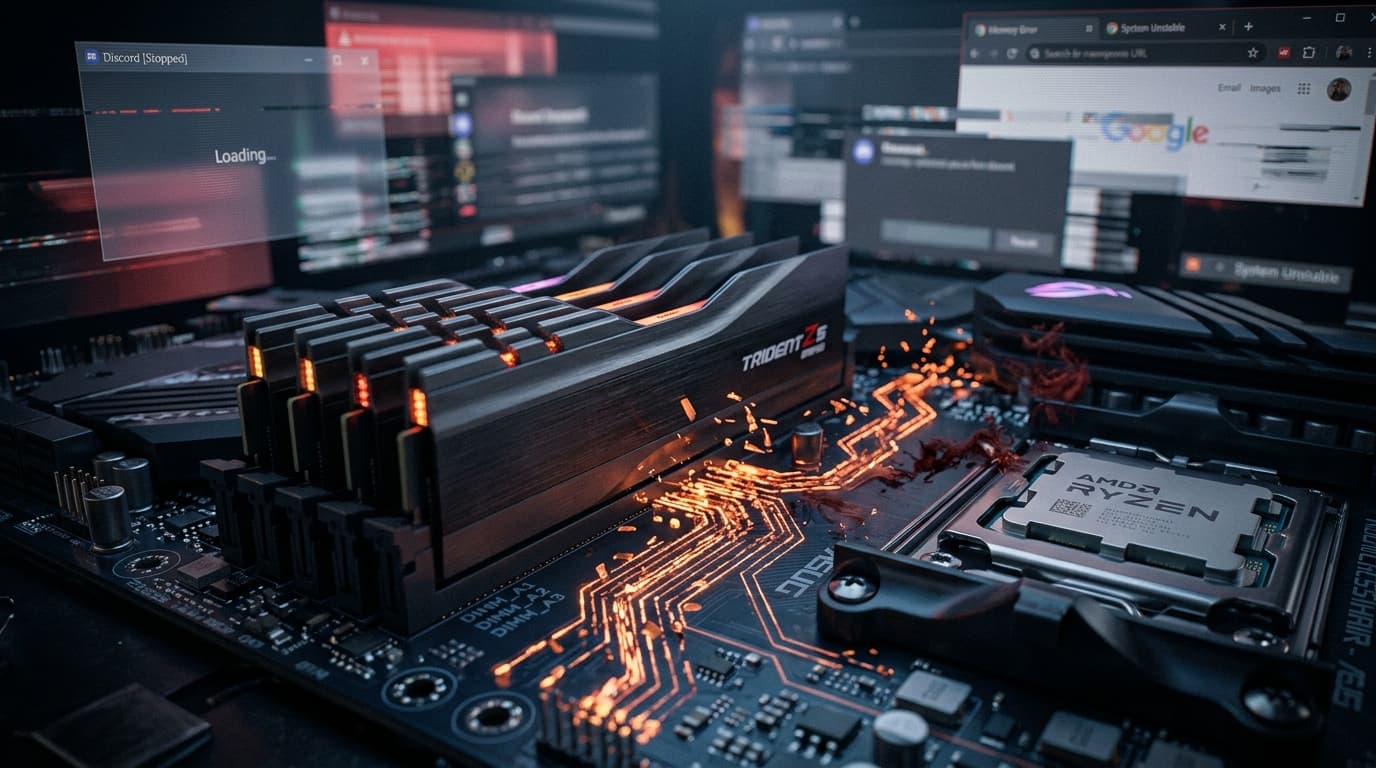
RAM modules and AMD Ryzen CPU on a motherboard showing a PC slowed by low memory
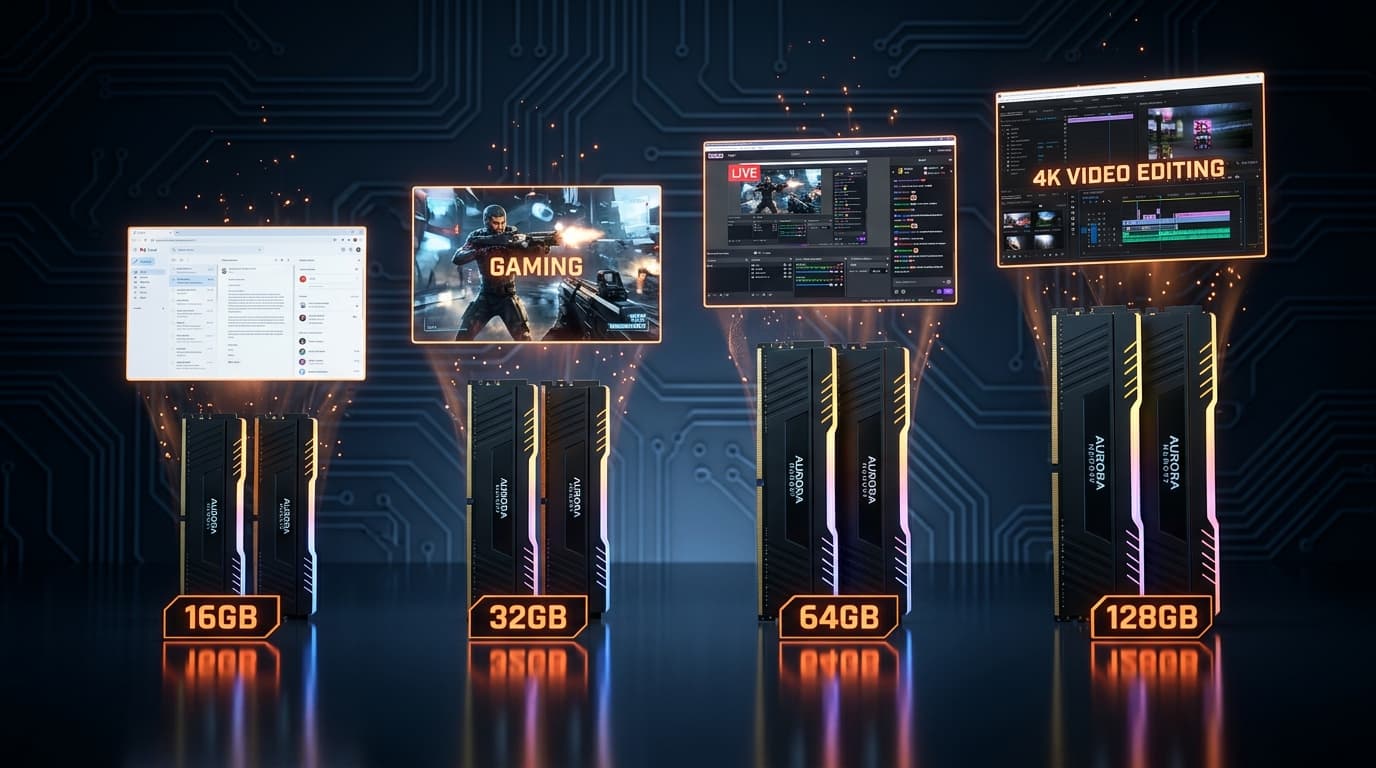
RAM capacity tiers of 16GB, 32GB, 64GB, and 128GB shown as rising memory sticks matched to browsing, gaming, streaming, and 4K video editing.

How Much RAM Do You Actually Need?

The right amount depends entirely on what you do. For browsing, email, and office work, 16GB is a comfortable starting point that keeps everyday tasks moving. Gaming feels smoother at 32GB, which handles modern titles and a busy desktop at the same time. If you want a sense of how a game will actually run on your setup, a game FPS calculator gives you a quick estimate. Step up to 64GB if you stream and record while you play, and consider 128GB for professional video editing, 3D rendering, or running virtual machines. Once you have enough for your workload, spending more brings little real benefit.

Choosing the Right RAM for a Balanced Build

Choosing memory is about more than the total number on the box. Speed and latency shape how quickly your system moves data, and both need to match what your motherboard and processor support, so it is worth checking your board's specifications before you buy. Pay attention to the DDR generation it accepts, the maximum capacity it can hold, the speeds it is rated for, and how many slots you have to fill. It also helps to think a little ahead, since leaving some headroom means you will not need another upgrade the moment your needs grow. Remember that memory is only one part of a stable system. Your processor, graphics card, and power supply all have to keep pace, and a psu calculator makes it easy to confirm your components have enough power to run reliably. Balance across every part is what delivers smooth, dependable performance.

RAM Size Calculator FAQs

How do I check how much RAM my PC already has?

On Windows, open Settings, then System, then About, and look under Device specifications for the installed memory. For a live view of how it is being used, press Ctrl plus Shift plus Escape to open Task Manager and select the Performance tab. On a Mac, click the Apple menu and choose About This Mac to see the total installed.

Can I mix RAM sticks of different sizes or brands?

You usually can, and the system will still boot, but it is not ideal. Mismatched sizes, speeds, or timings often force every stick to run at the slowest one, and some boards become unstable. For the best results, install a matched kit that was tested and sold together.

Do two smaller sticks perform better than one large stick?

In most cases, yes. Two matched sticks let your system run in dual channel mode, which widens the path between memory and the processor and improves performance in games and creative apps. A single stick of the same total capacity runs in single channel and is usually a little slower, so a matched pair is the safer choice.

Does adding more memory require a bigger power supply?

Memory itself draws very little power, so a few extra gigabytes will not strain your supply on its own. The concern arises when you upgrade several parts at once, such as a new graphics card alongside more memory. If you are refreshing multiple components, a quick check with a pc power supply calculator confirms your unit still has enough headroom.

Will more memory increase my frame rate?

Only if you were running short to begin with. Once you have enough for a game, extra capacity does little for frame rates, which depend far more on your processor, graphics card, and in-game settings. If you are unsure whether memory is your limit, an fps estimator helps you see where the real bottleneck sits before you spend.